
Understanding participant experience helps us assess whether the intervention was engaging, relevant and useful to their role. Positive feedback alone does not demonstrate impact, but it provides valuable insight into the quality of the experience.
Evidence may include:
- Participant feedback forms
- Surveys and evaluations
- Levels of engagement
- Perceived relevance to role
- Satisfaction with delivery and content
- Suggestions for improvement
Understanding participant experience helps us assess whether the intervention was engaging, relevant and useful to their role. Positive feedback alone does not demonstrate impact, but it provides valuable insight into the quality of the experience.
Evidence may include:
- Participant feedback forms
- Surveys and evaluations
- Levels of engagement
- Perceived relevance to role
- Satisfaction with delivery and content
- Suggestions for improvement
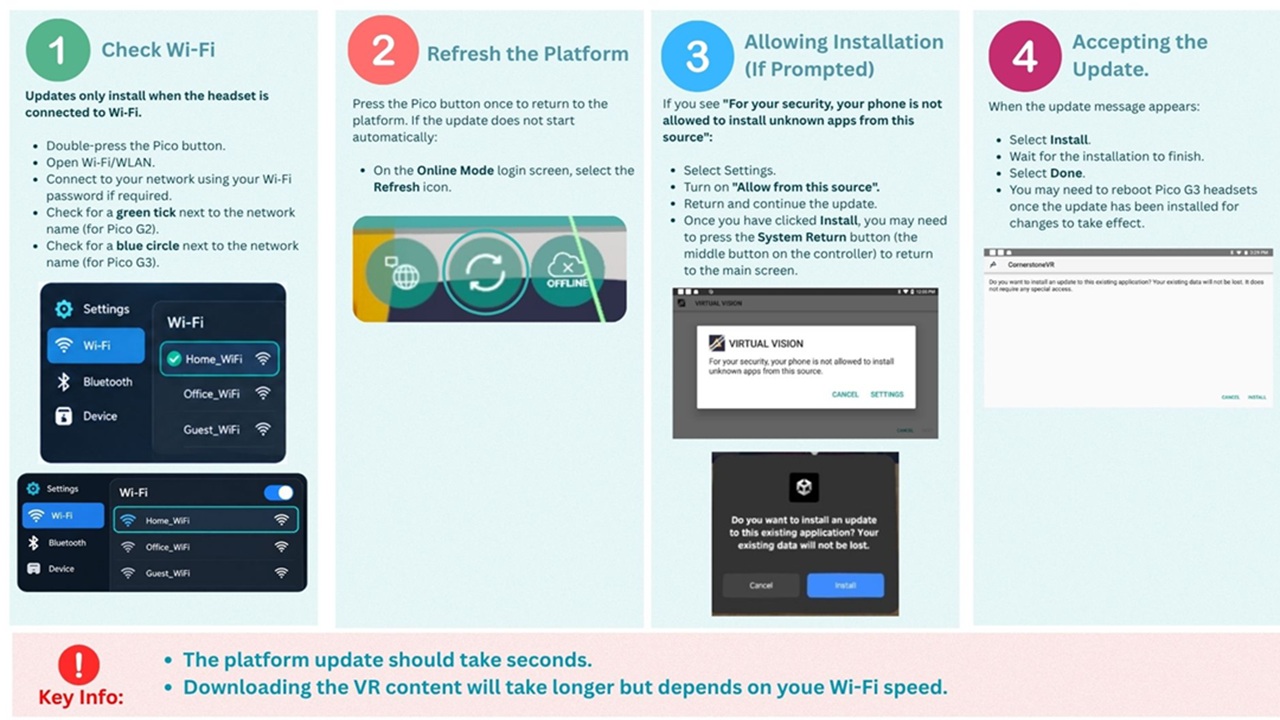
This information is for awareness only at this stage. Please do not update your headsets to v1.0 until further guidance is issued. We will provide dedicated update sessions so that support is available if you need help during the process. Dates and times will be confirmed shortly.
When it comes to updating your headsets to v1.0, we recommend updating and downloading content on one or two headsets first. This will help you understand how long the process takes on your network. If the update and downloads complete quickly, you can proceed with the rest of your headsets. If the process is slow, for example due to a weak internet connection, consider staggering the updates. This will ensure that some headsets remain available on the old platform with content accessible in Offline Mode while the others are being updated.
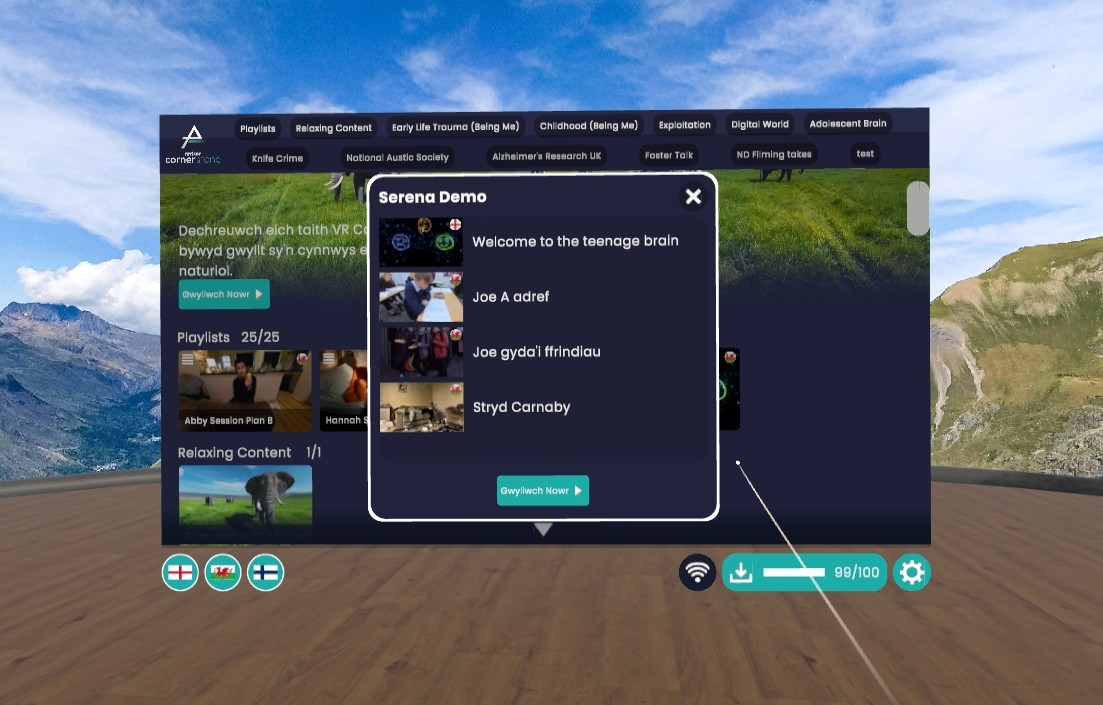
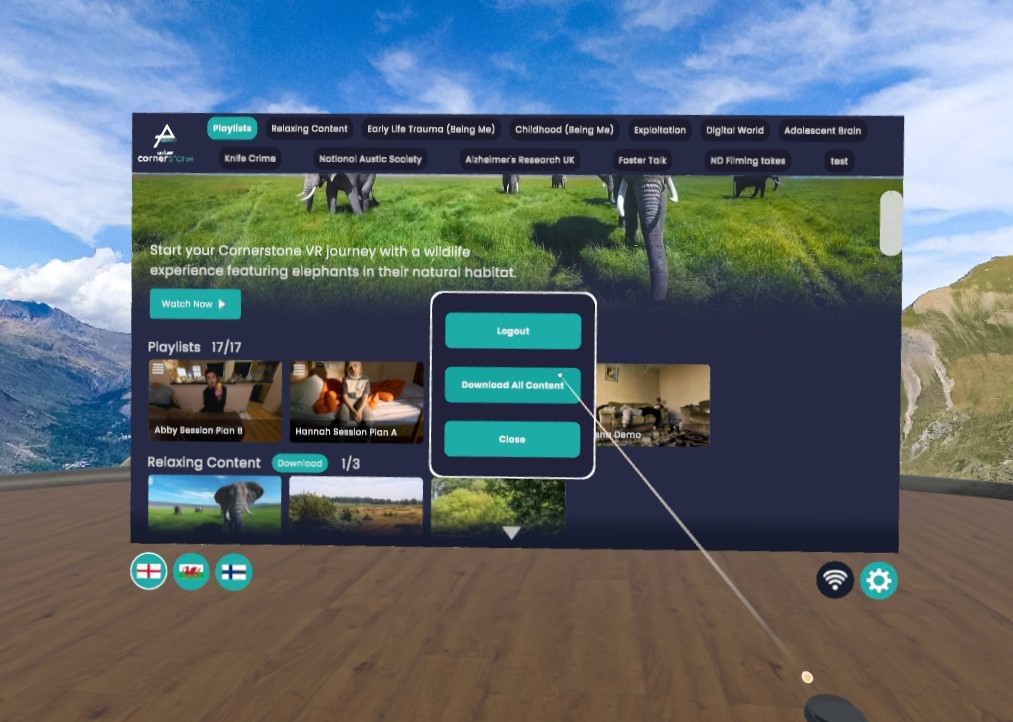
When downloading VR content, we recommend selecting “download all content”. To prevent the headset from going into sleep mode during the download, cover the sensor located between the viewing lenses with a small piece of Blu Tack, paper, a controller, or a similar object. This makes the headset think it is being worn, allowing the download to continue without you needing to keep the headset on. You can also download videos individually or by category.
To download all content:
- Select the settings cog in the bottom-right corner of the platform.
- Select Download All Content.
- A progress bar in the bottom-right corner of the screen shows how many videos have been downloaded and how may are still left to download.
- Once downloaded, videos can be watched in Offline Mode without an internet connection.
- To download content in a specific language, first select that language in the bottom-left corner of the screen. You can choose English, Welsh or Finnish.
Understanding participant experience helps us assess whether the intervention was engaging, relevant and useful to their role. Positive feedback alone does not demonstrate impact, but it provides valuable insight into the quality of the experience.
Evidence may include:
- Participant feedback forms
- Surveys and evaluations
- Levels of engagement
- Perceived relevance to role
- Satisfaction with delivery and content
- Suggestions for improvement
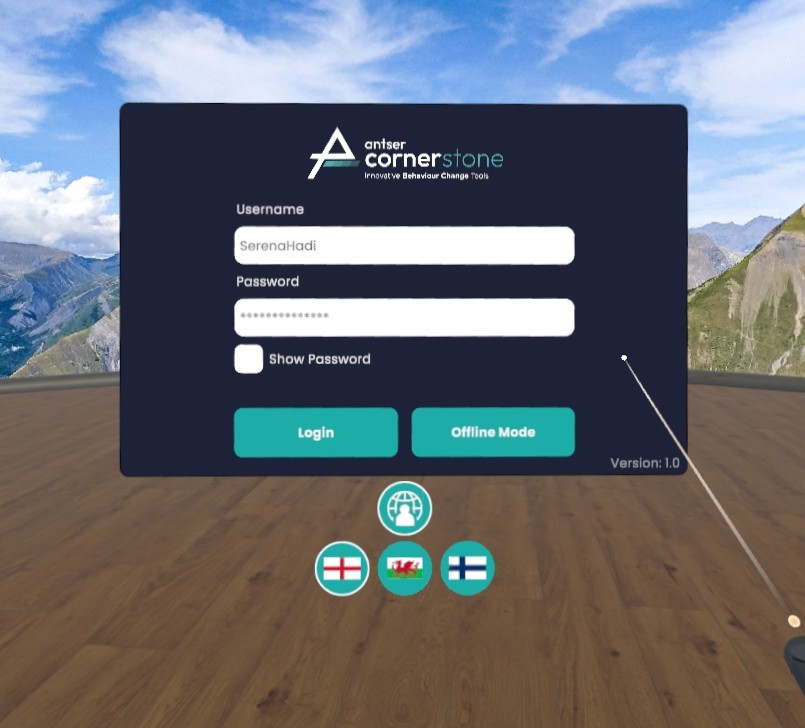
You need to use Online Mode to download new platform updates, content and playlists. You can also stream any content while using Online Mode.
You must be connected to the internet to use Online Mode. See the Quick Start process maps above for guidance.
To login:
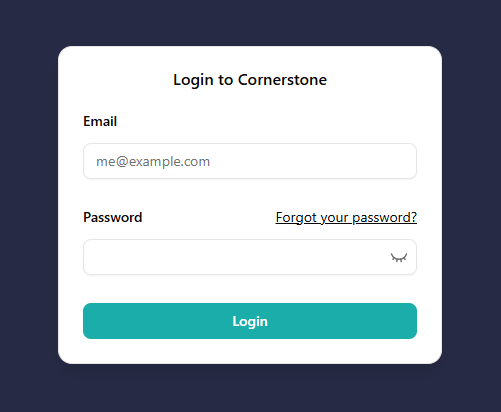
- Use the controller to select the Username field. Your username should already be entered. If it is blank, enter the username printed on the label on your headset.
- Select the Password field and enter your password using the on-screen keyboard. Your password is the same as your username and is case-sensitive.
- Select Show Password to check that your password has been entered correctly, including any capital letters.
- Select Login to access the platform.
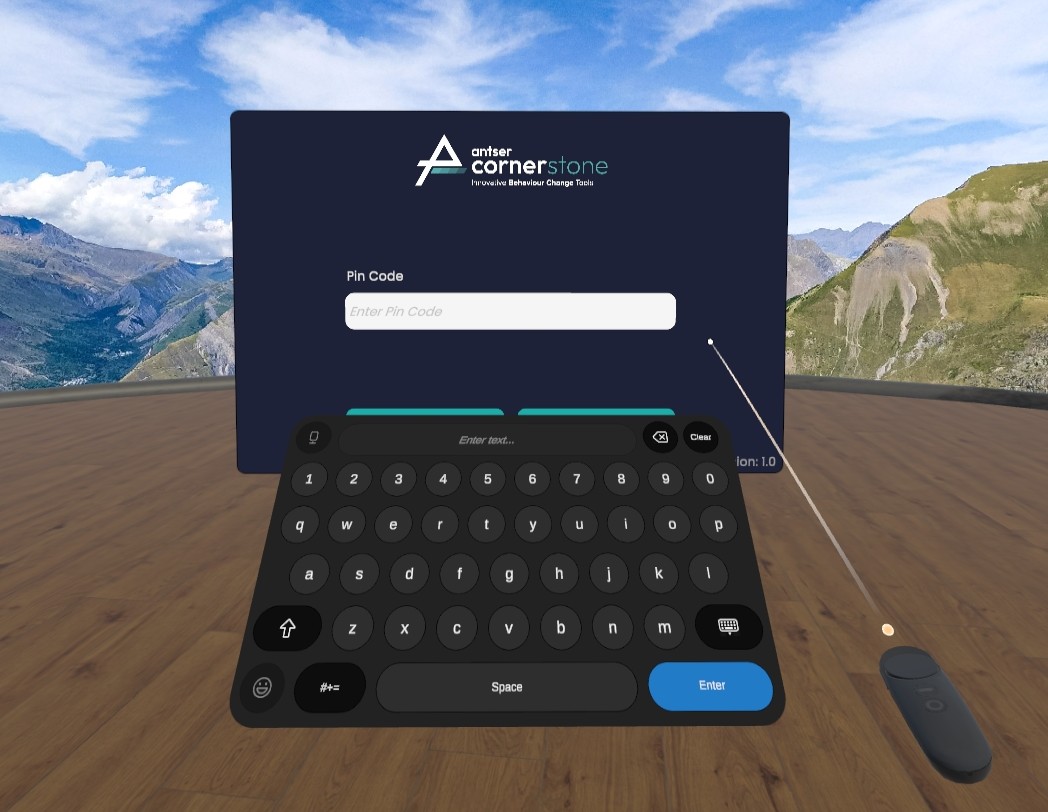
Offline Mode is the easiest way to watch content that has already been downloaded to your headset. You do not need an internet connection, but you will only be able to view content previously downloaded in Online Mode.
To login:
- Use the controller to select the Pin Code field.
- Enter 6417 using the on-screen keyboard.
- Select Login to access the platform in Offline Mode.
There are several ways to find and browse content:
- Use the top menu to browse videos by theme or access your playlists.
- Use the scroll bar on the right-hand side to move up and down through the video library.
- Select the up and down arrows to move through the library.
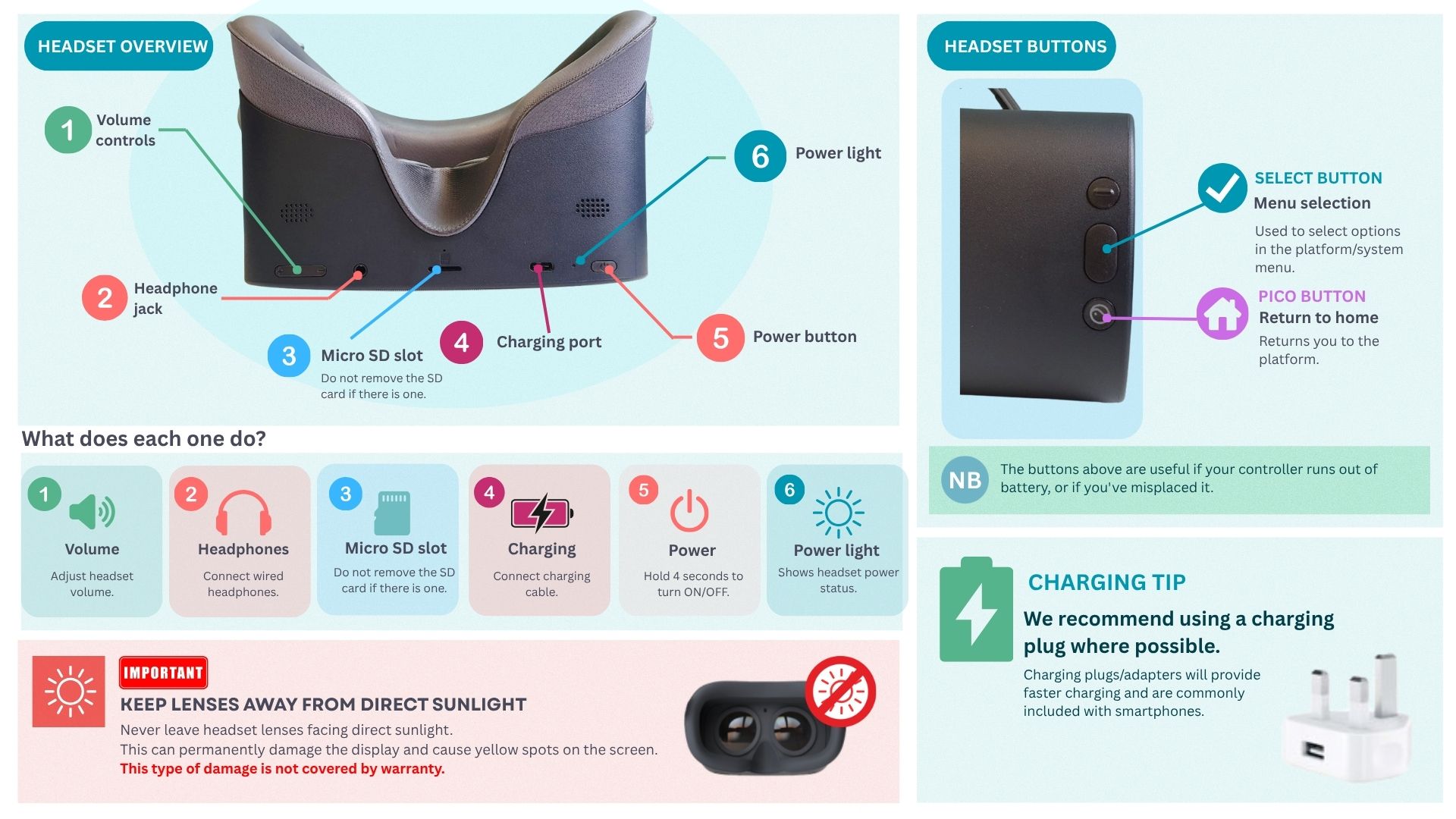
- You can also scroll using the controller. Point anywhere on the platform, hold down the Select Button, then move the controller up or down.
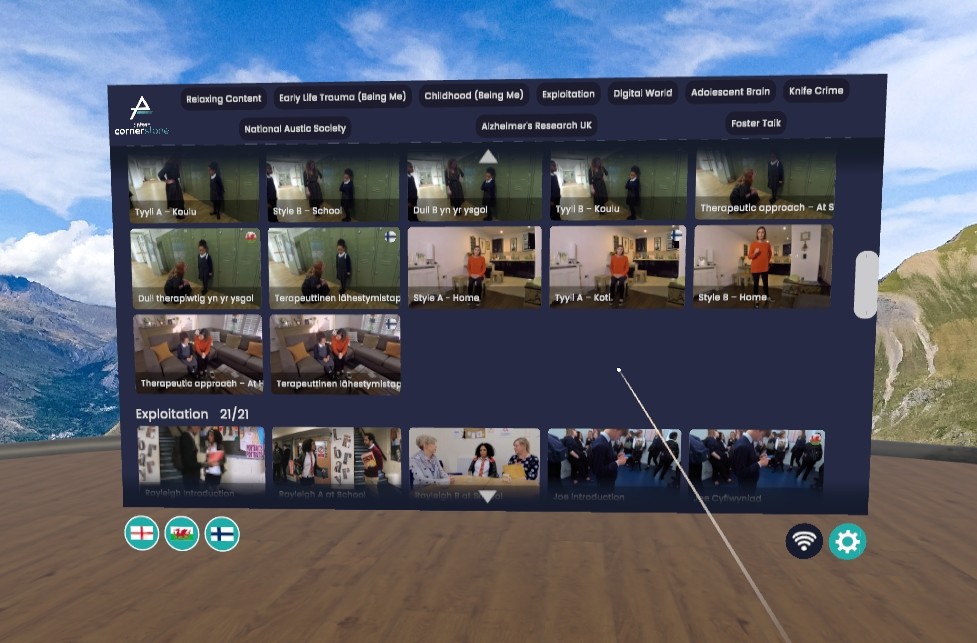
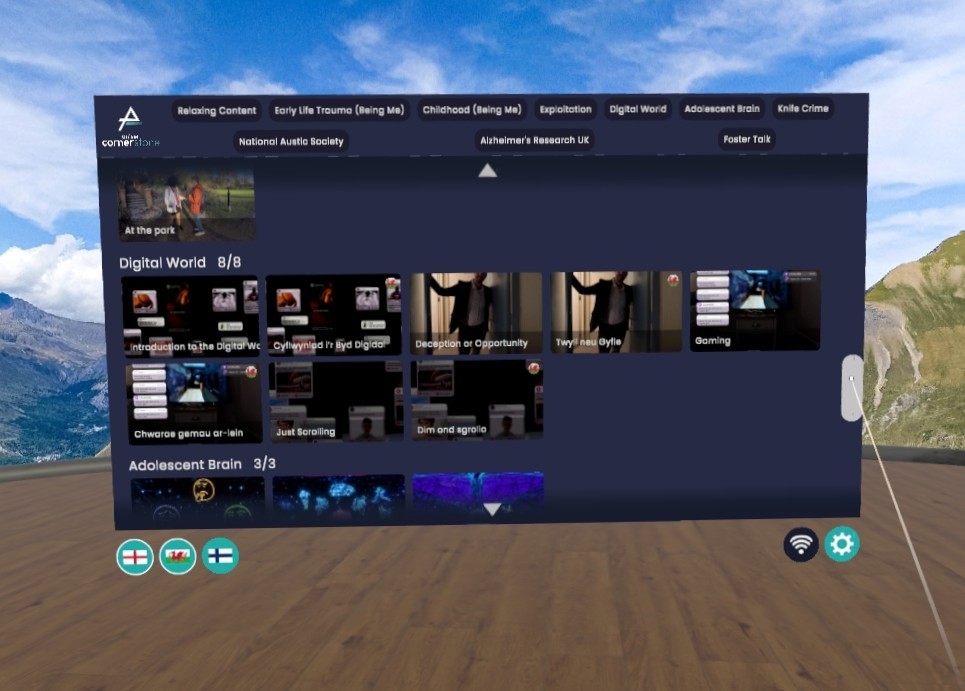
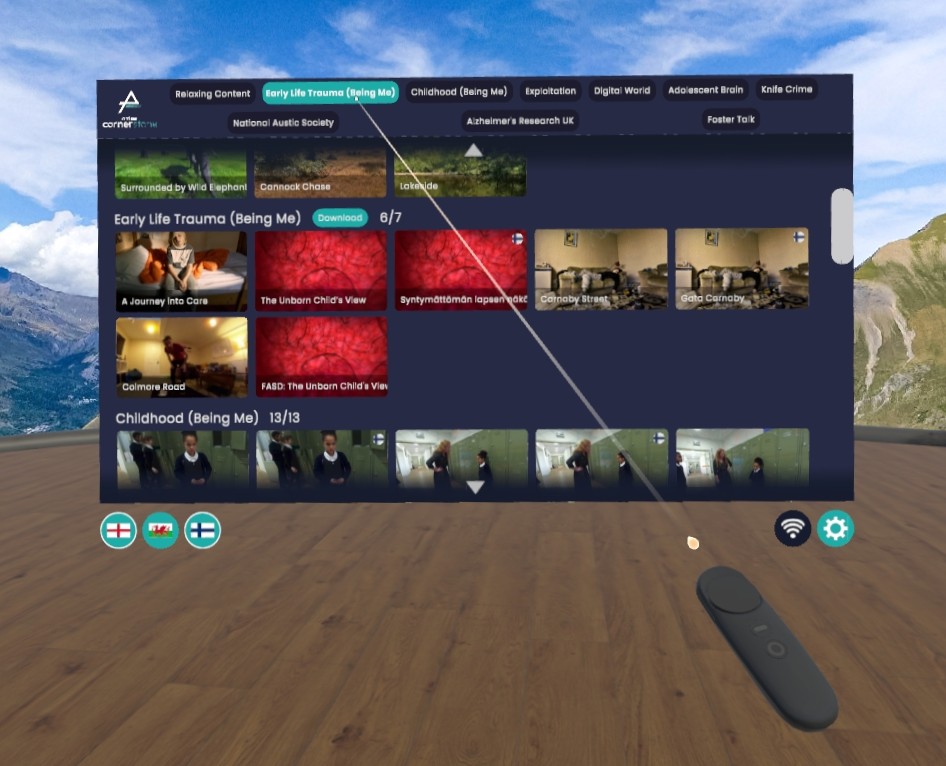
When downloading VR content, we recommend selecting “download all content”. To prevent the headset from going into sleep mode during the download, cover the sensor located between the viewing lenses with a small piece of Blu Tack, paper, a controller, or a similar object. This makes the headset think it is being worn, allowing the download to continue without you needing to keep the headset on. You can also download videos individually or by category.
To download all content:
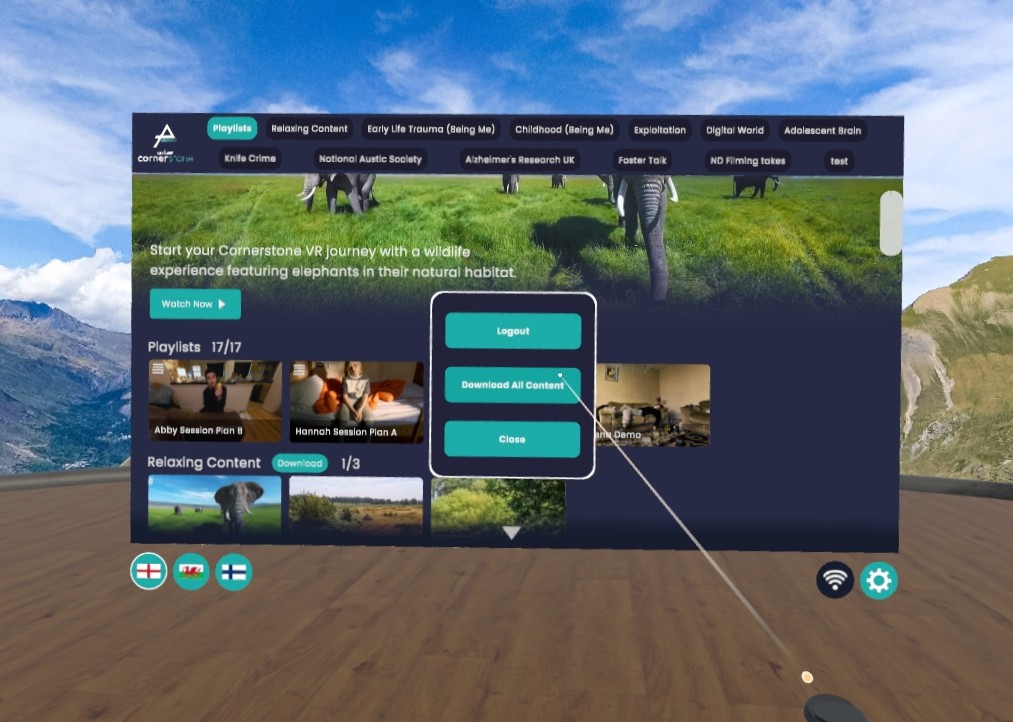
- Select the settings cog in the bottom-right corner of the platform.
- Select Download All Content.
- A progress bar in the bottom-right corner of the screen shows how many videos have been downloaded and how may are still left to download.
- Once downloaded, videos can be watched in Offline Mode without an internet connection.
- To download content in a specific language, first select that language in the bottom-left corner of the screen. You can choose English, Welsh or Finnish.
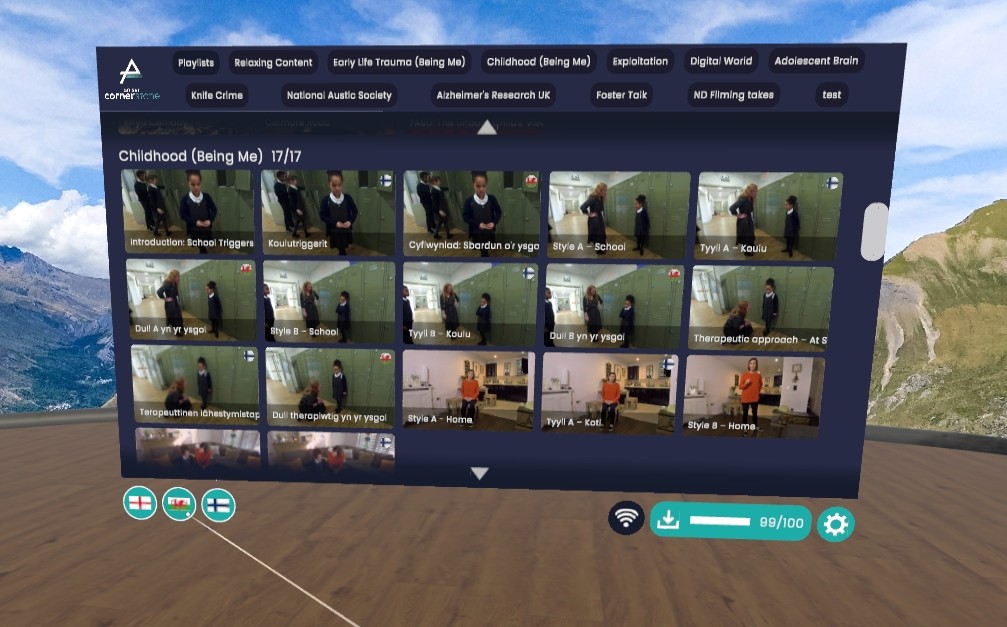
Downloading Content in Different Languages
To download content in a different language, first enable that language by clicking the flag icon in the bottom-left corner of the screen.
- Content available in English, Welsh or Finnish is marked with the relevant flag.
- Click the flag icons to turn languages on or off.
Watching Playlists in Different Languages
Playlists automatically play videos in the language selected when you log into the VR platform.
For example, if you log in using Welsh, any videos available in Welsh will play in Welsh. If a Welsh version is unavailable, the English version will play automatically.
Understanding participant experience helps us assess whether the intervention was engaging, relevant and useful to their role. Positive feedback alone does not demonstrate impact, but it provides valuable insight into the quality of the experience.
Evidence may include:
- Participant feedback forms
- Surveys and evaluations
- Levels of engagement
- Perceived relevance to role
- Satisfaction with delivery and content
- Suggestions for improvement
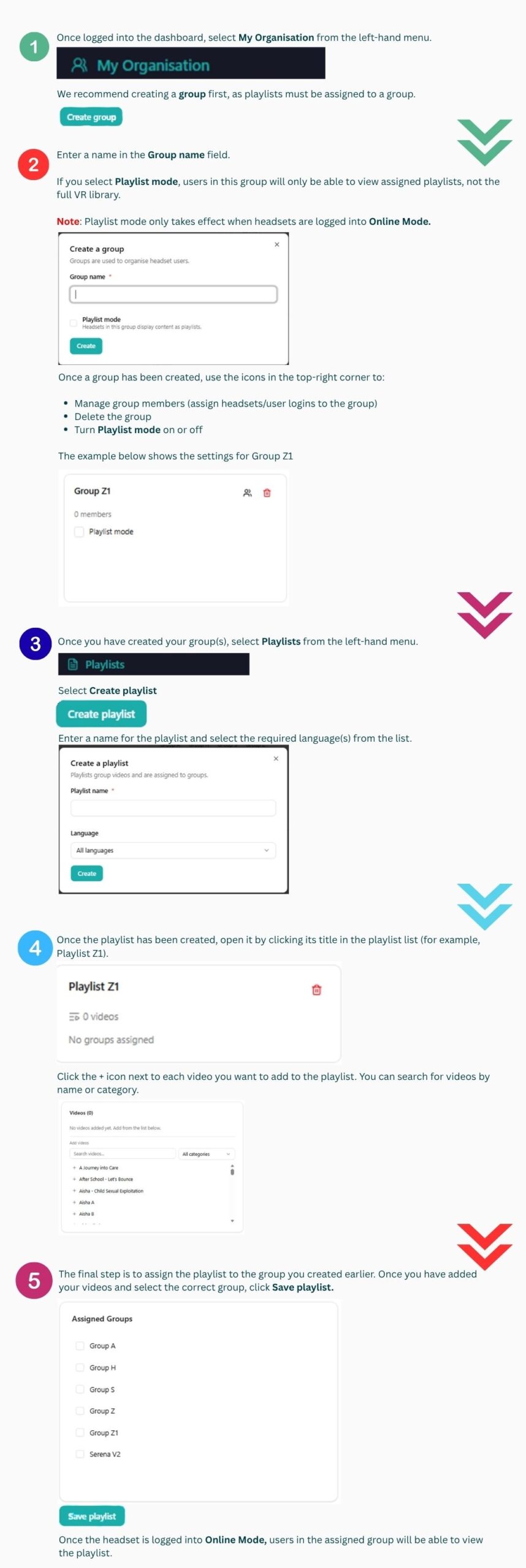
Playlists help you organise videos for training sessions and control what viewers can watch.
Assigned Playlist Managers can create playlists through the Cornerstone VR Dashboard. Your VR Lead can tell you who your Playlist Manager is.
Select a playlist to open it. You can then:
- Select Watch Now to play the playlist from the beginning, in order.
- Select an individual video to start the playlist from that video.
- At the end of each video, choose to watch the next video, skip to another video or exit the playlist.